¶ Introduction
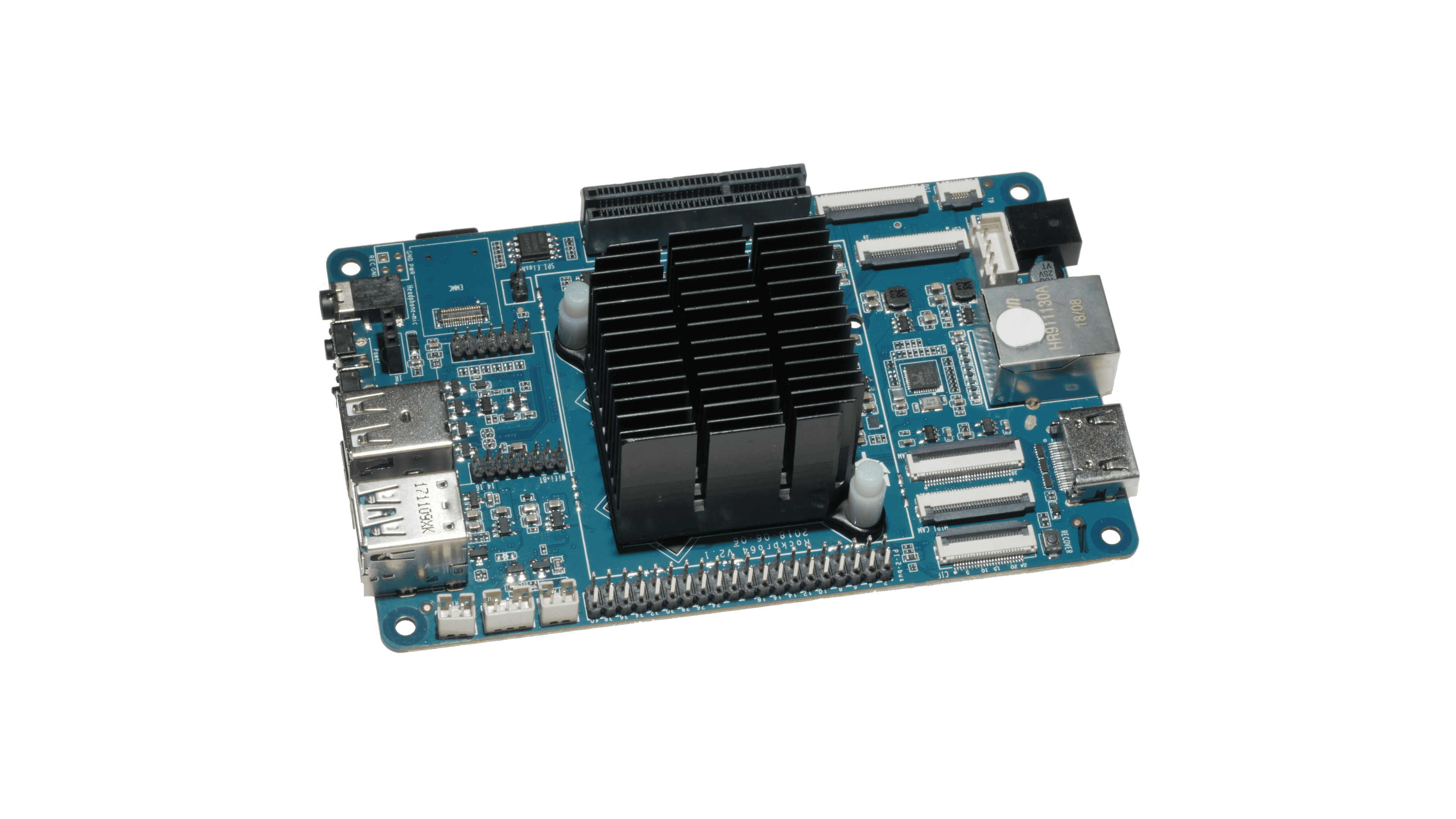
This section covers everything you need to know about setting up a RoninDojo bitcoin node on a Rockpro64 computer.
¶ Requirements
¶ Operating System Image
¶ Flash Operating System
- Download Balena Etcher.
- Download the RoninOS image from our website.
- It is recommended that you verify this image using using gpg. If you are unsure about verifying please see our verification page.
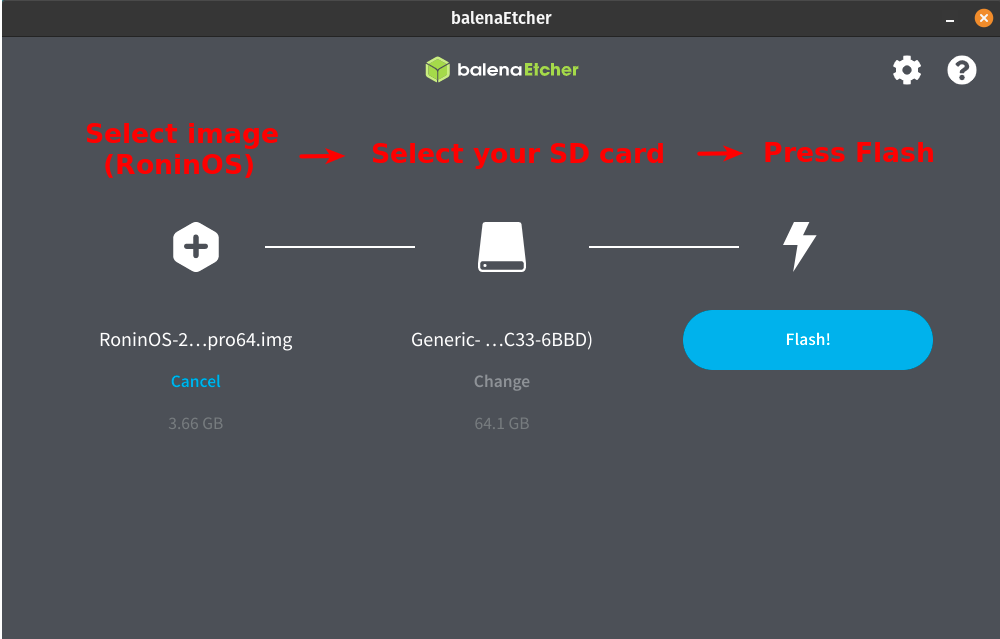
- Insert micro SD card into your PC, open Balena Etcher, select the RoninOS image, select your microSD card, and finally press
Flash!
¶ First Boot
NOTICE: Must plug Ethernet cable in first - before powering on!
- Insert the now flashed SD card into your device, and power on the device.
- Plug in the Ethernet cable first, then the power cord. Wait 10 minutes.
- Your node will automatically begin setup, so do not disconnect power during this time.
- Open your web browser.
- Navigate to: http://ronindojo.local
- Alternatively obtain the IP address of your node, then enter it into the URL bar
- You will be greeted by the initial setup screen, click
Let's start.
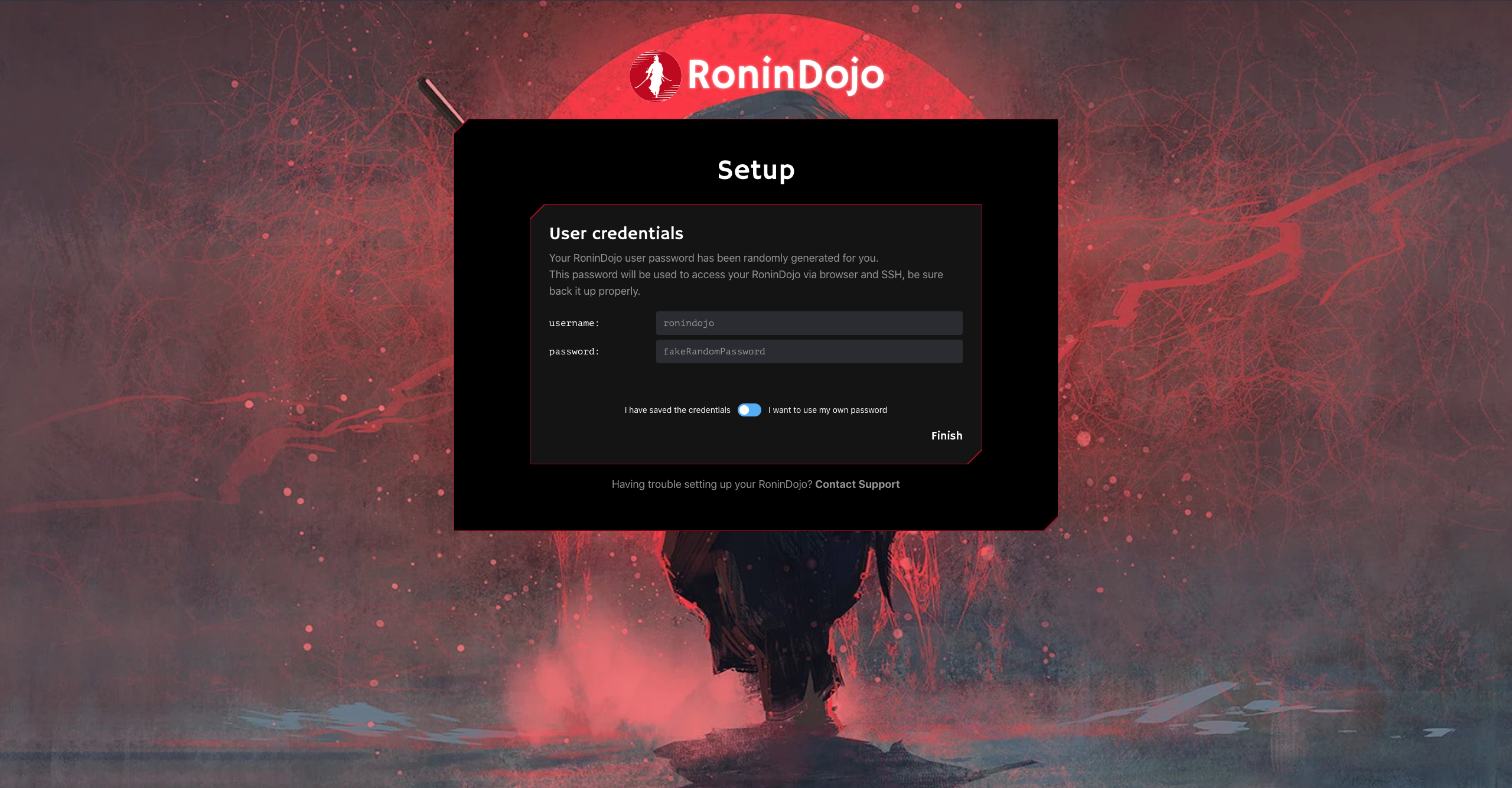
- Note down your Root user credentials and be sure to keep these somewhere safe.
- Next set your user password which will be used to log into RoninUI.
- Use a strong alphanumeric password (numbers 0-9 and letters A-Z capital/lowercase)
- Do not use special characters (@,#,&,?, etc)
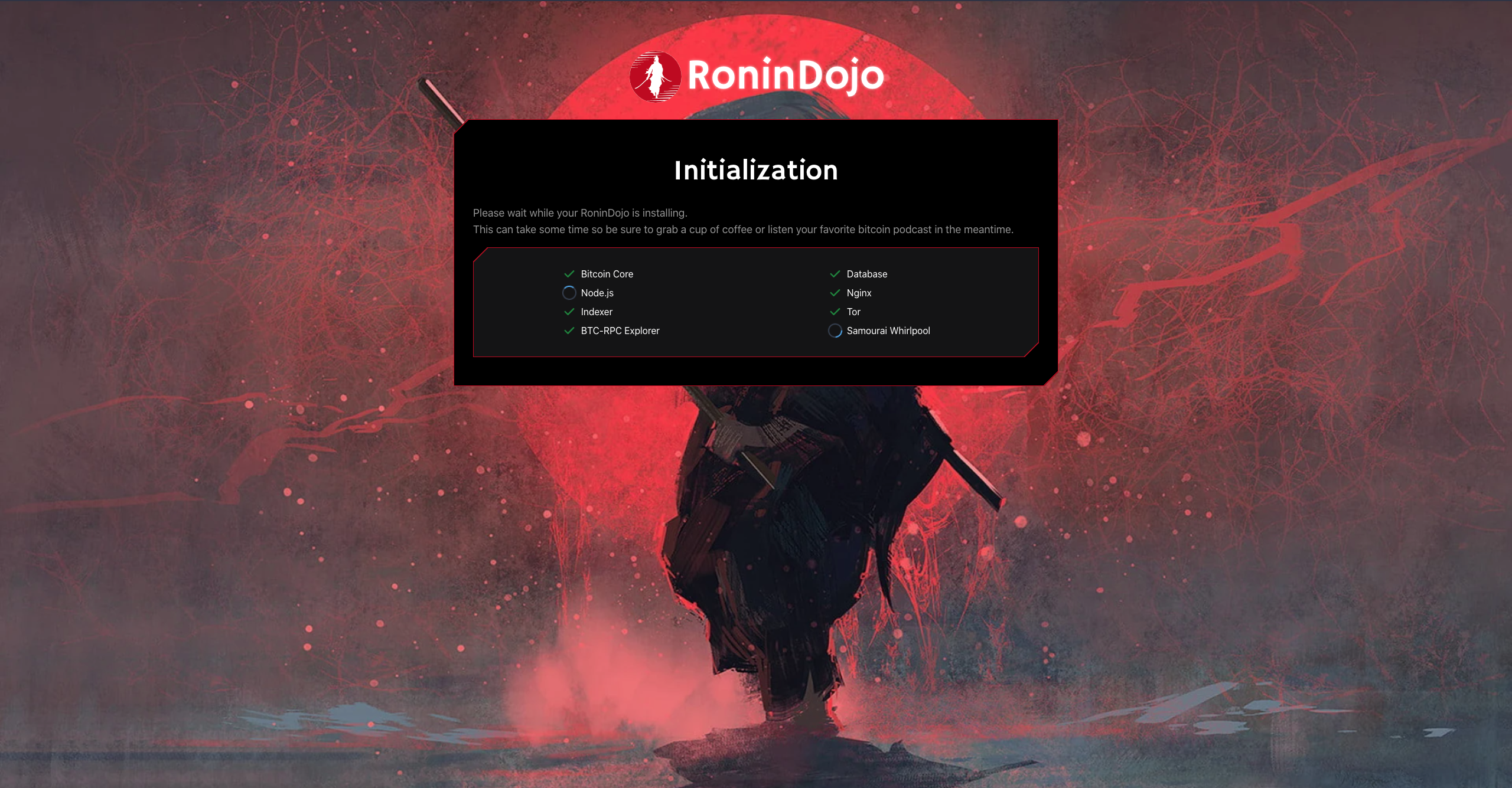
- Now wait for the initialization to complete. This takes approximately 45 minutes.
- Following initialization, you can click through to your RoninUI dashboard.
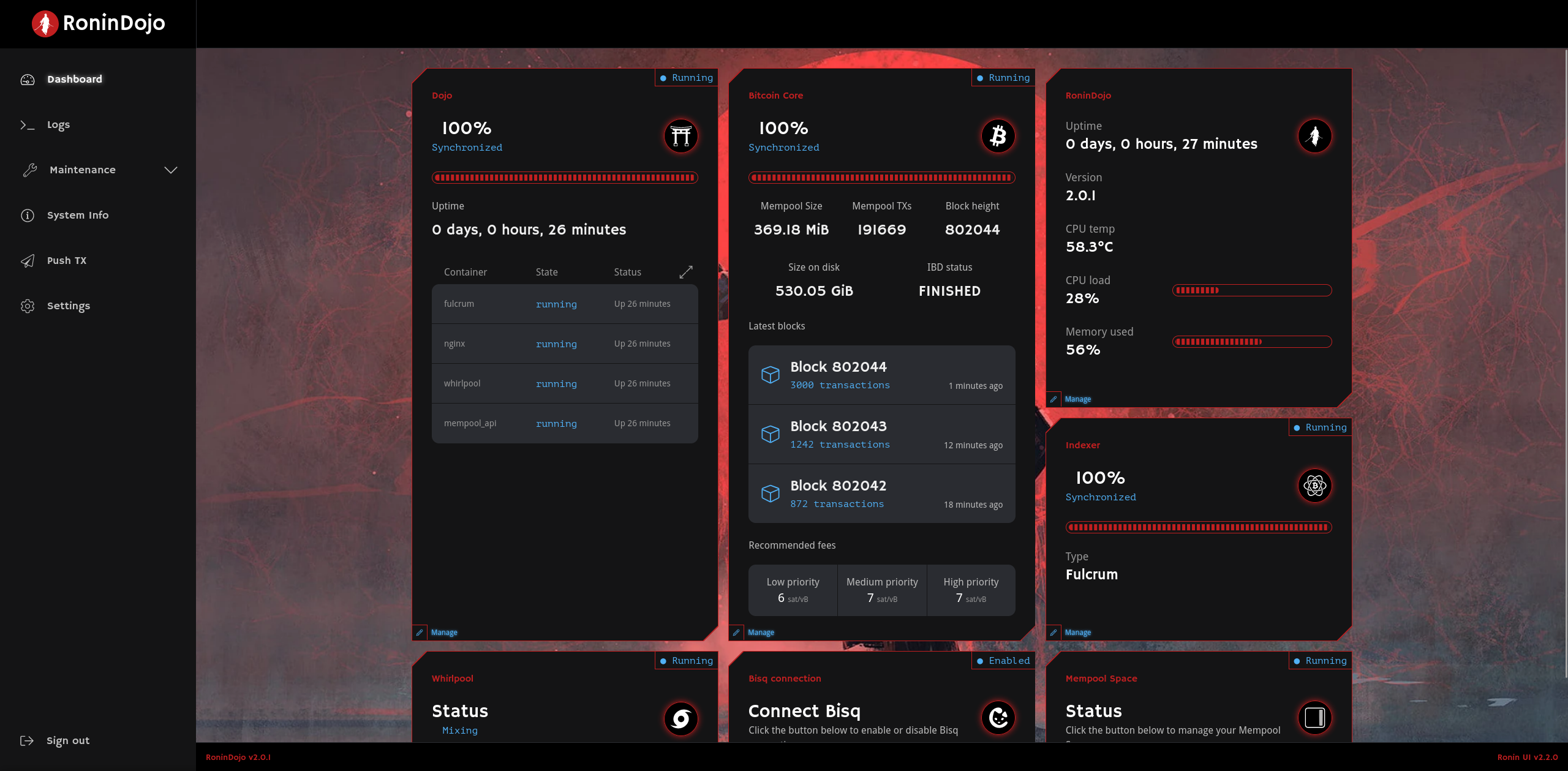
TIP: Your node will not be functional until the initial blockchain download and indexer compaction has finished.
NOTICE: Do not force restart your node or cut power as this can cause issues!
NOTICE: Please follow the MicroSD Card Troubleshooting Section if you need to reflash your node!
¶ SSH Access
After you create a password you can SSH into the device. See the RoninCLI Section of this wiki for more command line interface information.
Example:
¶ Additional Info
Get familiar with the RoninUI while you wait for downloads to complete.
Check out Troubleshooting & Extras if you want more information.
Join the RoninDojo Chatroom and engage the community.