¶ Introduction
Accessing the Command Line Interface (CLI), often referred to as 'RoninCLI' allows you to carry out more indepth maintenance, access more advanced features, tweak configuration files, and more.
The following steps will teach you how to 'SSH' remote login to the RoninCLI and give some examples of navigating the menus.
¶ Obtain Your RoninDojo's IP Address
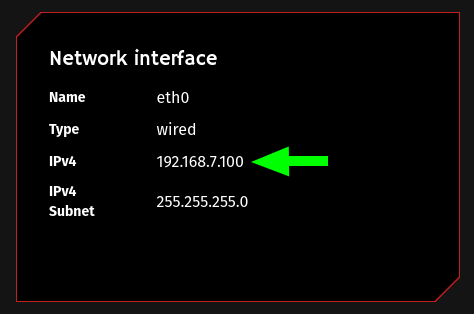
Sign in to your RoninUI, and navigate to
System Info→Network interface.Copy the
IPv4address to your clipboard.
¶ Open The Terminal
Carry out one of the following according to your computer operating system:
¶ Mac
- Press keys
Cmd + Space - Search for 'terminal', then launch application.
¶ Linux
- Press keys
Super + T.
¶ Windows
- Press
Start - Search for
cmd, then launch application.
Alternatively you can download and install one of the following, then launch the application:
- Ubuntu: Windows Subsystem
- Putty Putty.org
¶ SSH Into Your Node
- In the terminal type
ssh ronindojo@YouNodeIPaddressthen ENTER
- Substitue in your IPv4 address. For example:
- If this is the first time SSHing into your node, you will be prompted with the following (or similar):
- The authenticity of host '192.168.7.100 (192.168.7.100)' can't be established. ECDSA key fingerprint is SHA256:xxxxxxxxxxxxxxxx. Are you sure you want to continue connecting (yes/no/[fingerprint])?
- Follow the on-screen instructions to authorise this.
- For example, type
yesthen ENTER
- Enter your user password, the same used to sign into your RoninUI.
- Next you are prompted with
[sudo] password for ronindojo:
Enter your user password again, the same used to sign into your RoninUI.
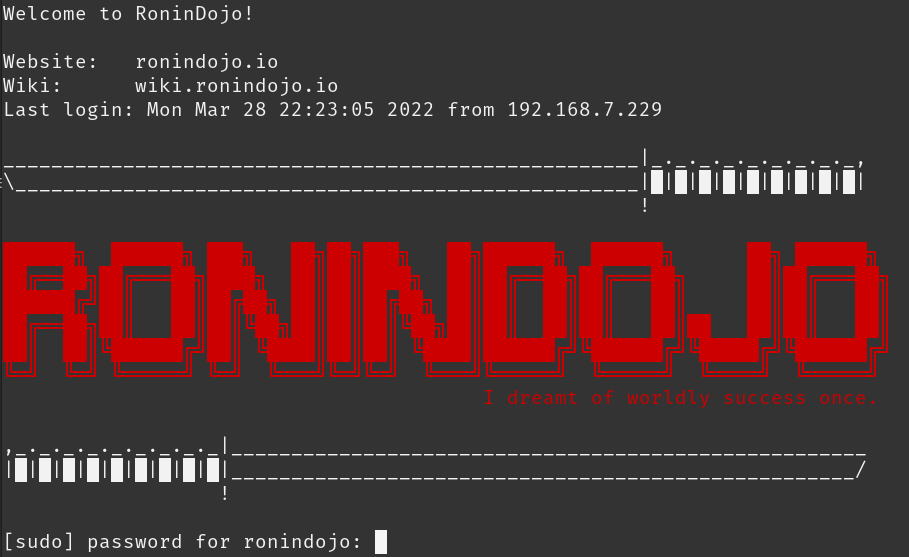
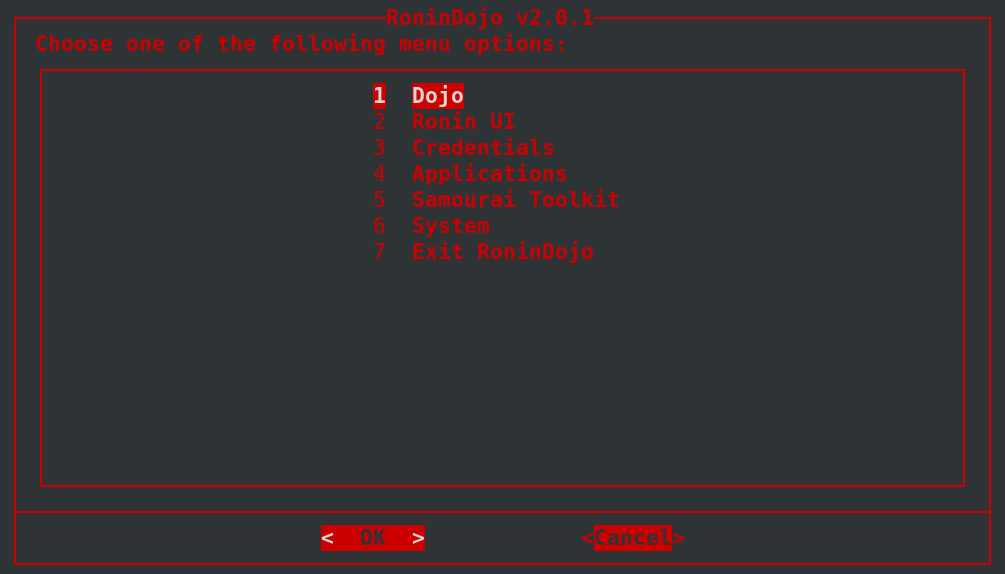
- Here is the RoninCLI graphical interface you will be greeted with:
¶ RoninCLI Navigation
Use your arrow keys to navigate the RoninCLI menus, press ENTER to navigate into sub-menus, credentials, etc.
When viewing logs, you may exit back to the RoninCLI using
Ctrl + cTo navigate to the terminal, select
7 Exit RoninDojoWhen in the terminal, to navigate back to the RoninCLI menu, type
roninand pressENTER
¶ RoninCLI Manage Applications
- You can manage your third party applications by going to the RoninCLI command line interface menu and selecting the following.
Applications → Manage Applications
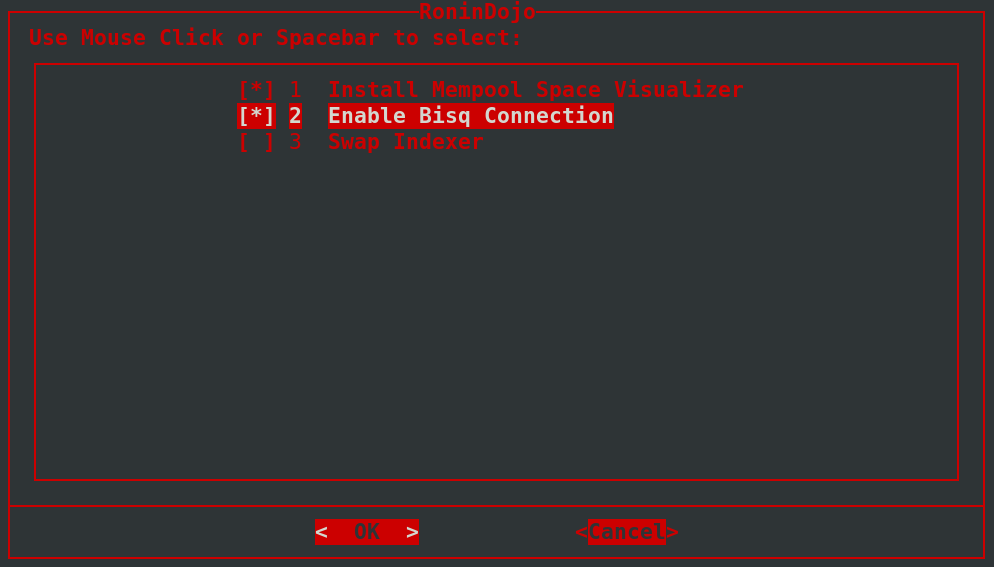
- Using the mouse or arrow keys, navigate to each of the menu items listed below and select each one using the spacebar or a mouse click. When you press
OKthe process will start and should a few minutes. You may press theCancelbutton at any time to abort and return to previous menus.
- In this example the user has chosen to install Mempool Space Visualizer and enable Bisq Connections.
[*]Install Mempool Space Visualizer
[*]Enable Bisq Connection
- Keep in mind that you can select to manage multiple applications at one time by using the space bar or a mouse click. You will see a
[*]asterisk appear when selecting an option, and[]means that it has not been selected. After pressingOKyour changes will be finalized.
¶ SSHing Tips
If you have only one RoninDojo node on your network, you may substitute the IP address for 'ronindojo.local' when entering the SSH commend. For example:
¶ Updates
You can get updates for your RoninDojo bitcoin node using the RoninCLI menu.
System → Software Updates → Update RoninDojo
¶ Additional Info
Check out Troubleshooting & Extras if you want more information.
Join the RoninDojo Chatroom and engage the community.