¶ Introduction
Sparrow Wallet is a desktop only bitcoin wallet, available on all major platforms that provides a fantastic alternative to Electrum or Specter. Sparrow provides huge amounts of detail to the user relating to their UTXO’s, transactions and balances, and is compatible with almost every hardware wallet on the market.
Sparrow Wallet can connect directly to Bitcoin Core, but for better privacy and performance it is recommended to back Sparrow Wallet using an Electrum Server. RoninDojo comes with Electrum Rust Server (Electrs) by default as an indexer. Using Electrs still allows for performant use of Samourai Wallet but also facilitates the connection to any othe wallet application that opts to use an Electrum Server as their backend.
¶ Indexer Prep
If you have just set up your RoninDojo, after the blockchain has been downloaded, it takes Electrs around 10 - 12 hours to fully index. Do not attempt to carry out the following steps until this time has passed.
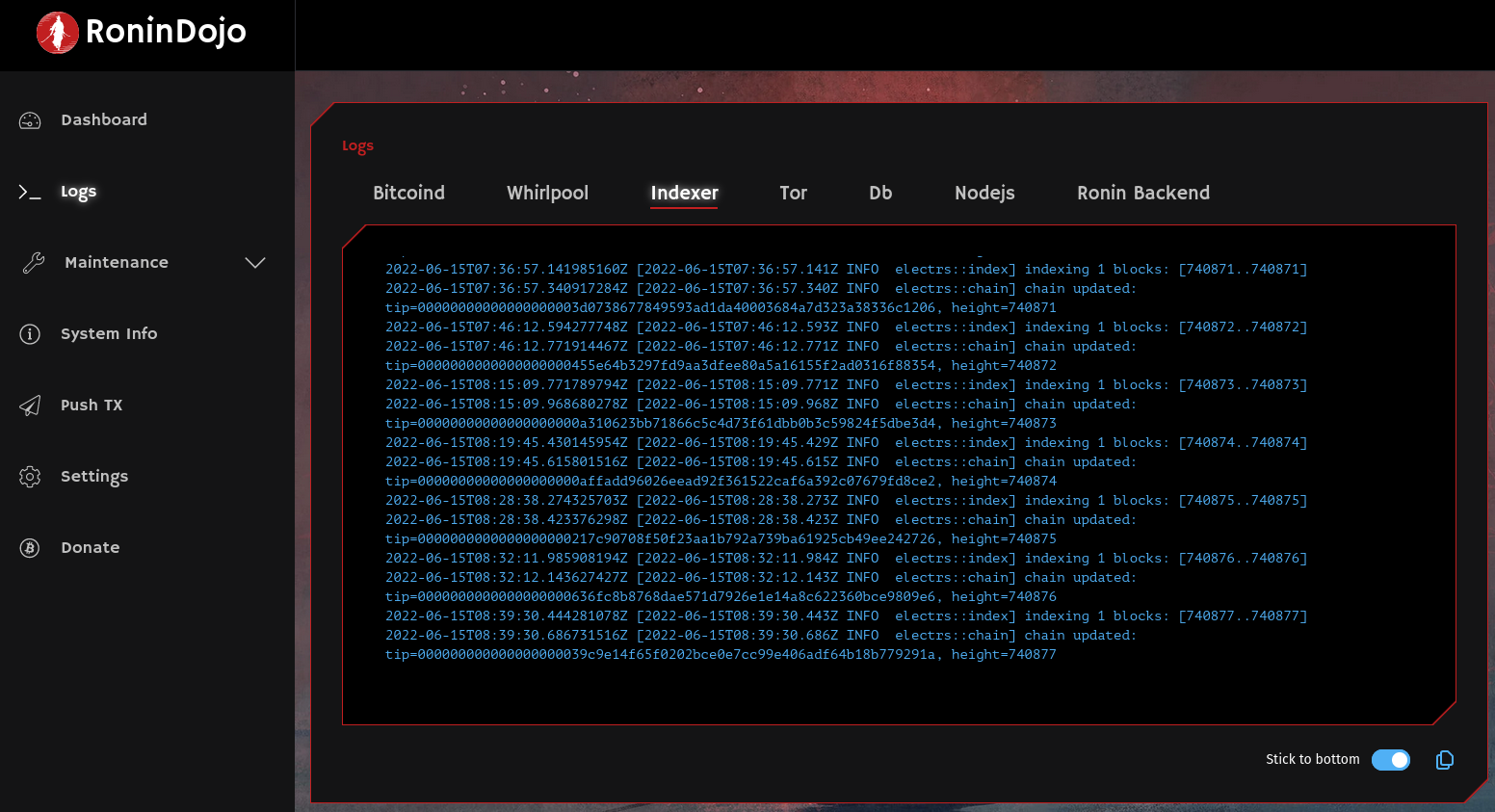
To confirm that Electrs has completed indexing you can view the Indexer logs on your RoninUI. If the latest block height is displayed, then you are ready begin using your node. If not, give it some more time before continuing.
¶ Install Sparrow
Download and install the wallet from the Sparrow Wallet Downloads page. This wallet is available for Mac, Windows and Linux.
¶ Connect with Sparrow
- On your RoninUI dashboard, select
Pairingfrom the left-side menu. Then, click thePair nowbutton below theElectrum Servercard.
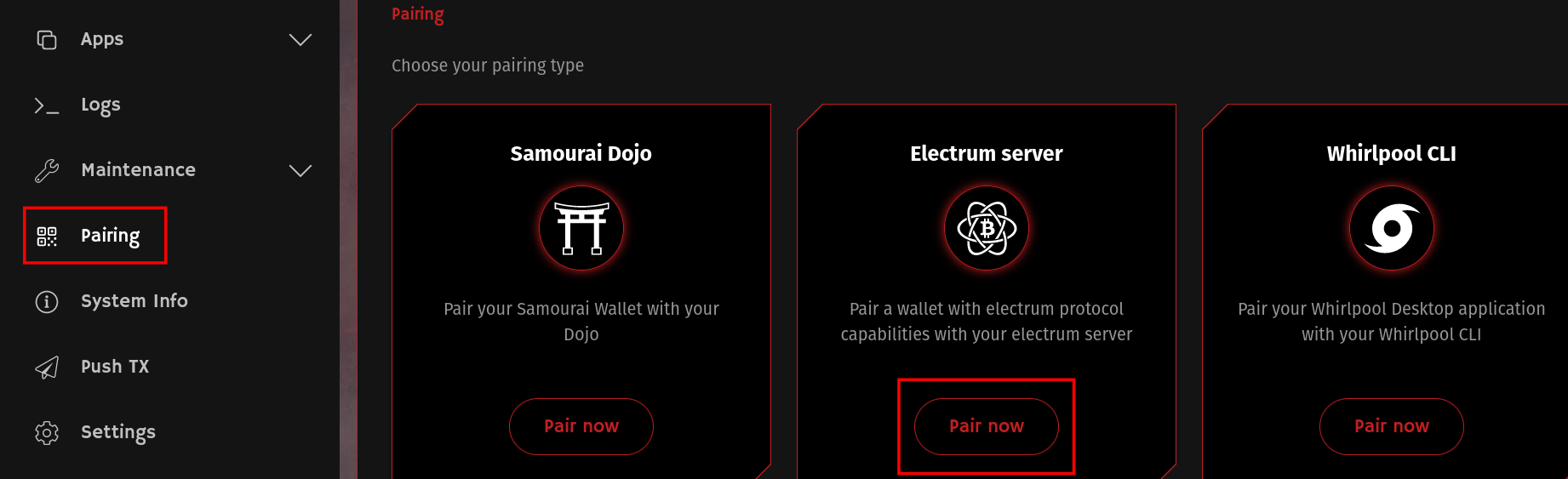
- Note: You can use either Electrs or Fulcrum as your Indexer for Sparrow Wallet.
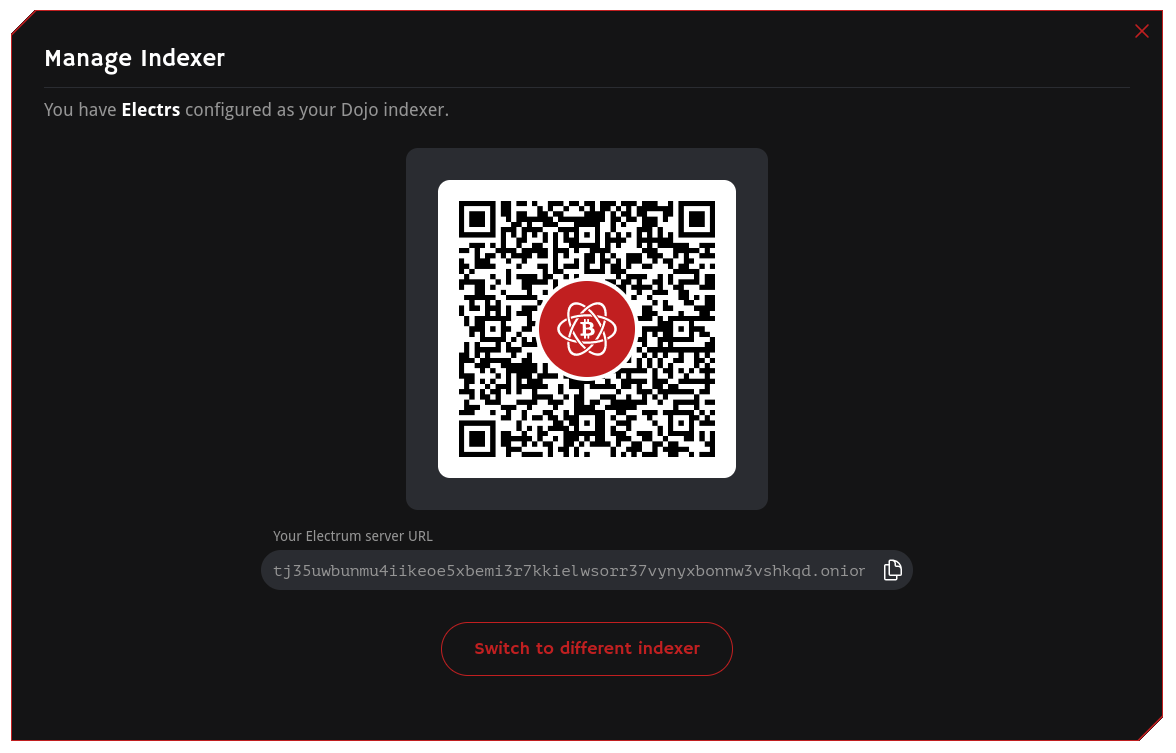
- Copy the Tor Address which ends with
.onion
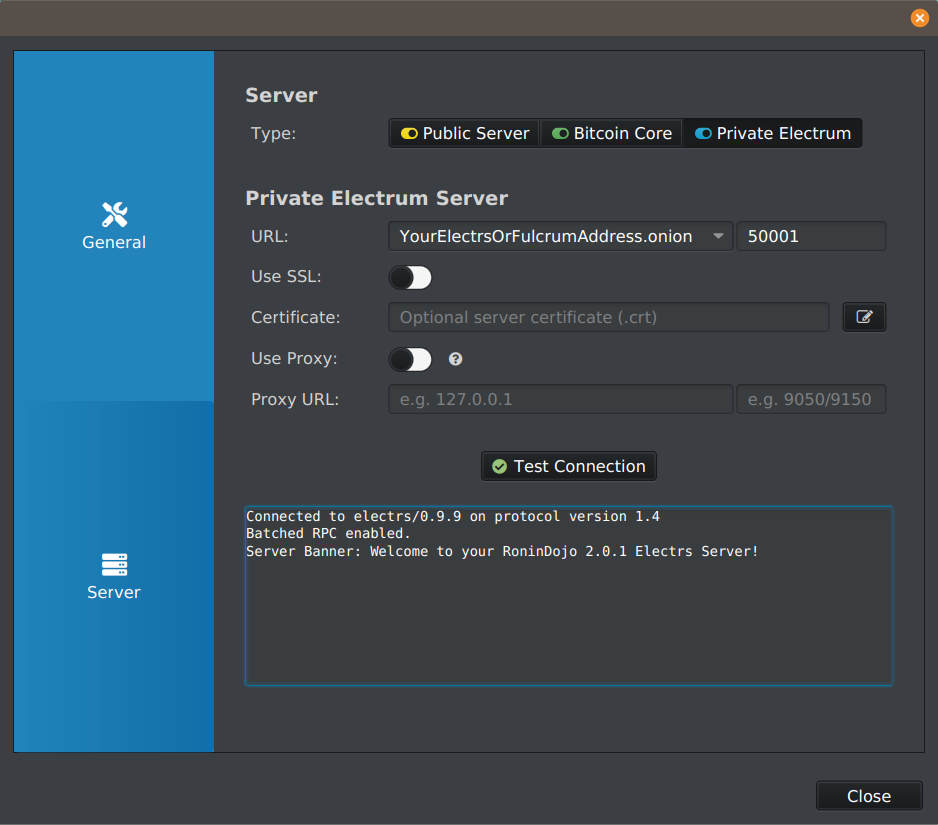
- Open Sparrow and go to
File→Preferences→Serverthen select:
- Server type
Private Electrum - Paste the Indexer
.onionaddress into the 'URL' field. - Delete
:50001from the end of the address - Set the 'URL' port to
50001.
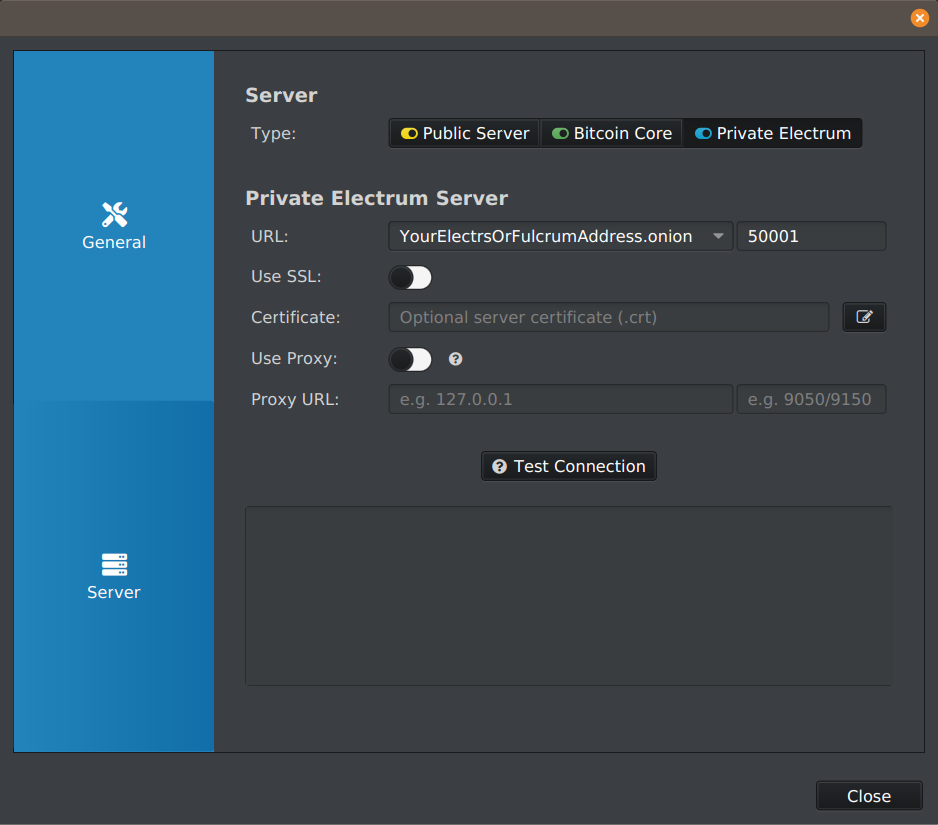
- Click 'Test Connection' and you should see a success message at the bottom of the screen.
¶ You are now ready to connect your hardware wallet to your RoninDojo!
¶ Sparrow Usage - Tips and Considerations
Importing a Samourai Wallet into Sparrow
- If you choose to import your Samourai Wallet into Sparrow, you should set the derivation path to
m/84'/0'/0' - After you have restored your wallet, to add your Whirlpool accounts in Sparrow navigate to
Settings→Add Account→Whirlpool. - For user who have a 'deep' postmix account (where the address index is high due to hundreds of Whirlpool remixes), the postmix balance within Sparrow may be inaccurate. If so carry out the following steps:
- Go to
Settings→Advanced - Change the gap limit to
150, hit ENTER, then click Close - Click
Apply - Then go to
View→Refresh Wallet - Wait for your wallet to resync.
- Go to
- Samourai Wallet has two additional script types within the deposit wallet: Legacy and Segwit Compatibiltiy (Nested Segwit). These are used within Samourai Wallet to receieve bitcoin to addresses beginning with 1 or 3, and are also used for the like-type change address privacy feature. To gain access to your bitcoin which may have been sent to these two types of addresses, within Sparrow you will need to restore two additional new wallets using derivation path
m/44'/0'/0'andm/49'/0'/0'setting the 'script type' toLegacyandNested Segwitrespectively within the settings menu.
¶ Watch-only Wallets in Sparrow
It is possible to use Sparrow wallet to watch the public keys (xPUB, yPUB, or zPUB) of other bitcoin wallets. This allows you to track the balances of other bitcoin wallets without saving the private key (which is required for spending) on your Sparrow desktop application.
- Create a watch-only wallet in Sparrow by selecting:
File→New Wallet→Add name→"xPUB / Watch Only Wallet"
If you wish to watch a public key from your Samourai Wallet, ensure you enter into Sparrow the correct derivation path for the intended the public key, as below:
¶ Deposit Account
xPUB
Derivation:m/44'/0'/0'yPUB
Derivation:m/49'/0'/0'zPUB
Derivation:m/84'/0'/0'
¶ Pre-mix Account
- zPUB
Derivation:m/84'/0'/2147483645'
¶ Post-mix Account
- zPUB
Derivation:m/84'/0'/2147483646'
Note:
When watching a Post-mix Account, be sure to carry out the following for an accurate display of your balance:
1. Go to Settings → Advanced
2. Change the gap limit to 150, hit ENTER, then click Close
3. Click Apply
4. Then go to View → Refresh Wallet
5. Wait for your wallet to resync.
¶ Missing or Wrong Wallet Balance [Whirlpool Users in Sparrow]
Some users running Whirlpool in Sparrow Wallet may have trouble viewing their entire wallet balance, especially on the post-mix side. This may be resolved by increasing the Gap Limit setting. Increasing the gap limit to 300 usually solves most issues.
In rare instances, a much higher limit, 1000 or more, may be required.
¶ Gap Limit Explained
The address gap is the number of unused addresses between those that have received funds.
For example:
Address #1 receives coins
Address #2 to 11 go unused [gap here is 10 unused]
Address #12 receives coins
In the above example, we have an address gap of 10.
If your Sparrow Wallet has a Gap Limit setting of 5, it would not see the coins in address #12
With that understanding, you can see why a very large Gap Limit, i.e. 1000+, is unusual.
¶ Setting Gap Limit
- Navigate to
Settings→Advanced→Gap Limit - Set
Gap Limitto300 - Repeat above steps for each wallet account
(Deposit, Premix, Postmix, Bad Bank) - Perform Wallet Refresh by navigating to
View —> Refresh Wallet (Ctrl + R) - If balance still doesn't appear,
Gap Limitmay need to be set higher(1000+)
¶ Confirming Address Gap in Sparrow
You can confirm an address gap by visually obsvering it. To confirm:
- Open Sparrow, navigate to
Addresses - Scroll through
Receive Addressesand observe for any large gaps between the most recently used address and the one prior
- A very large gap should be fairly obvious i.e. there is a gap of 1000
- Unused addresses do not display a value - they are blank
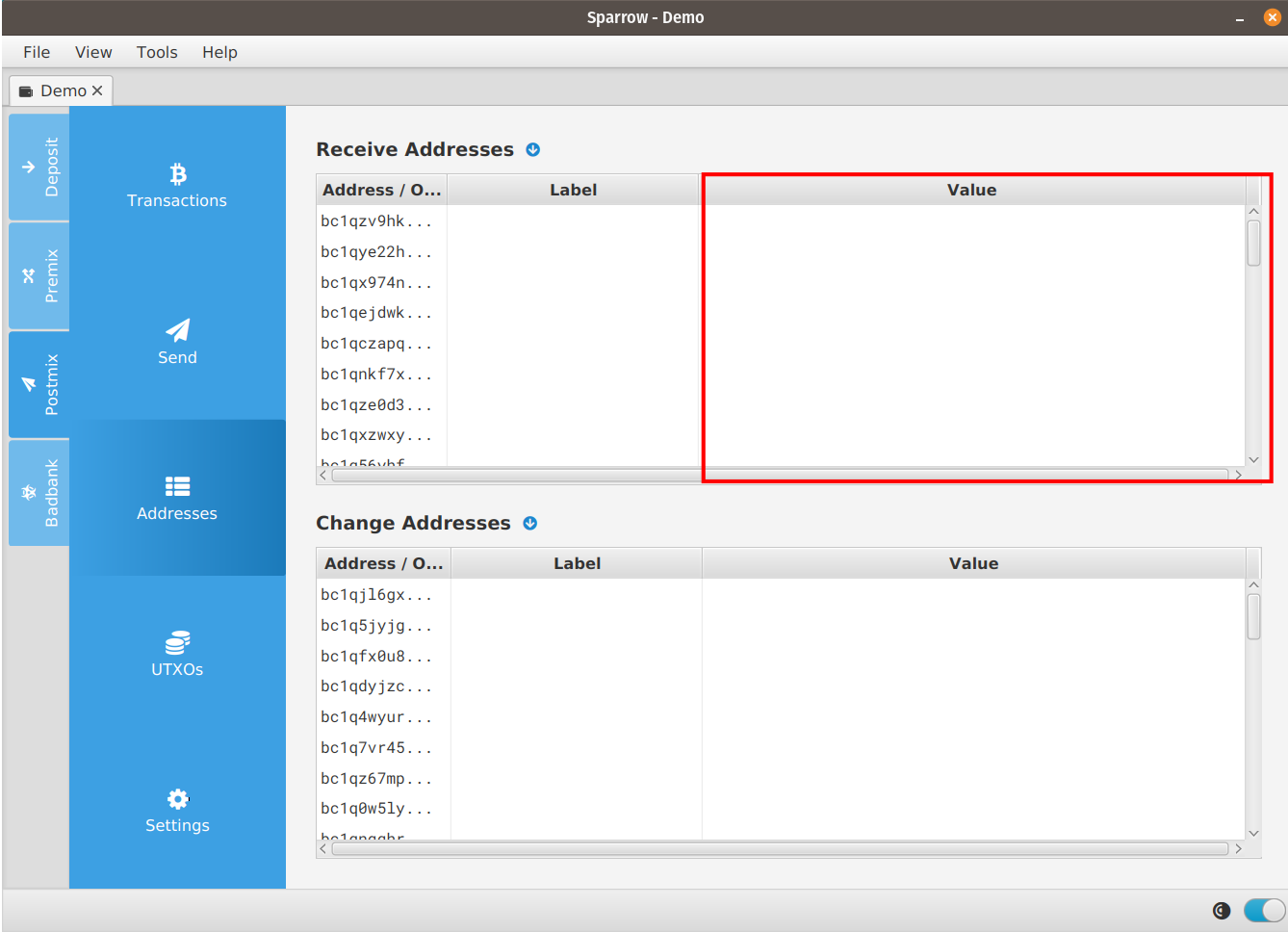
- Repeat step 2 for each wallet account
(Deposit, Premix, Postmix, and Badbank)to observe all possible gaps.
¶ Managing Address Gaps
If you observe an unusually large address gap between the most recently-used address and the one prior, that is a rare bug occurring on Sparrow when using Whirlpool, and is not a RoninDojo / Tanto issue.
It is manageable by being aware and setting the appropriate gap limit whenever you recover your wallet. However, gaps in the thousands may be an annoyance and you may want to consider moving your coins to a new wallet.
¶ Additional Info
For more information on how to utlize your hardware wallets, see this Sparrow Wallet Guide and Sparrow Wallet Video.
Check out Troubleshooting & Extras if you want more information.
Join the RoninDojo Chatroom and engage the community.